



















New in Heyoo: Content Library for LinkedIn Posts


We have introduced the Content Library in Heyoo: one shared place where marketing collects the material employees can turn into LinkedIn posts.
Marketing organises case studies, white papers, guides, blogs, photos and PDF carousels in Heyoo, and employees pick them up exactly where they create their posts.
From any suitable item, employees can let Heyoo write a post in their own Tone of Voice, add their own angle, and attach the material itself when that makes sense.
Why we built this
Most companies already have plenty of good material to post about. A new customer case, a research report, a product guide, photos from an event, a carousel the design team made last month.
But that material rarely reaches the people who could share it. It sits in folders employees do not know about, and when they do find it, turning a 12-page white paper into a personal LinkedIn post is still a lot of work.
The result is that marketing keeps creating content that only the company page shares, while employees struggle to find something worth posting about.
The Content Library closes that gap. Marketing decides what is available and for whom. Employees get a ready source of relevant material, and Heyoo helps them turn it into a post that sounds like them.
What’s new exactly?
A shared library, managed by marketing
Admins can find the Content Library under Manage in the main menu. There, they can:
- Add content by uploading files, adding a link, adding text or importing from the Knowledge Base
- Organise items in folders, such as Case Studies, Guides, Visuals or White Papers
- Add tags and descriptions so items are easy to find
- Search across folders, files and tags, and switch between grid and list view
- Decide which employee groups can access each folder, or override access per file
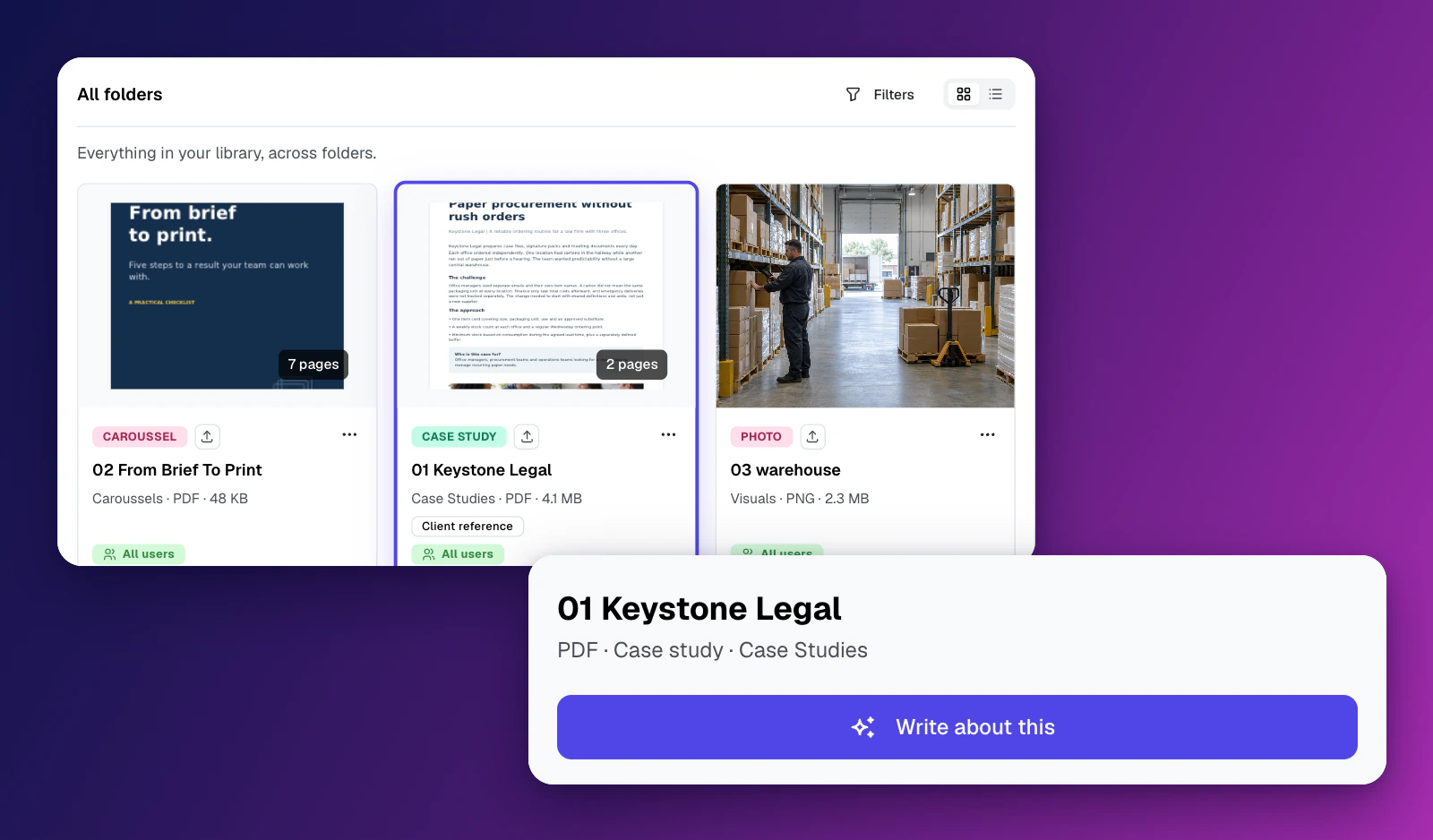
Every item shows a preview, its type (for example Case study, Photo, Guide, White paper or Carousel), its folder, format and size, its tags and who can use it.
Source material or attachment
Marketing can also decide how a document should be used:
- Write about it: the document is the source for the post. Heyoo uses its content, but the post stands on its own.
- Write about it and attach it: the document is the source and is also attached to the post. This is ideal for PDF carousels and other material you want people to share directly.
This lets marketing separate background material from material that is meant to be seen on LinkedIn.
How does this work in Heyoo?
Employees can open the Content Library in three places:
- Create new post > Create from Content Library. Choose an item, then set who the post is for, add your own angle if you like, choose the post length and a format such as Solution, Story or Tips, and generate the post.
- In the post editor, via Add Media > Browse Content Library.
- In the editor’s Copilot panel, via the Content Library button.
In the editor, the available action depends on the item. For a case study you can select Write about this, and Heyoo drafts a post based on it. For a photo you can select Add to post to use it as the post’s visual.
The post is written in the employee’s own Tone of Voice and can then be edited, scheduled or sent for approval like any other post in Heyoo.
From company material to personal posts
With the Content Library, the material marketing creates finally gets a second life on LinkedIn, through the people who know it best.
Marketing stays in control of what is available and for whom. Employees, executives and subject matter experts get a quick, relevant starting point, and still bring their own experience and perspective to every post.
The Content Library is now available in Heyoo under Manage > Content Library.
Book a personal demo to learn more about HeyooSign up for a free trial to see it for yourself
 Open in Claude